





Book
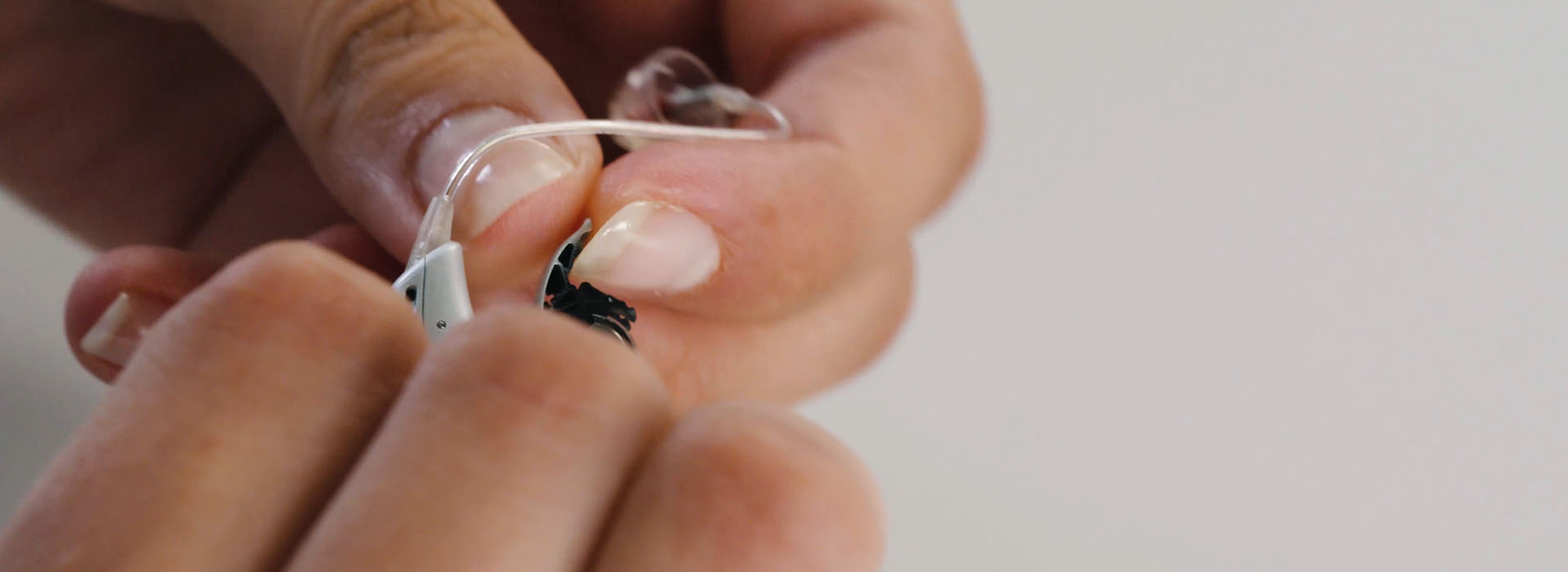
Hands gently adjusting a sleek modern hearing aid with precision.

Hearing aid maintenance

On this page, we have collected a number of how-to videos, where you can learn how to change batteries or domes, clean and maintain hearing aids, or connect your hearing aids to the TV or music streamer.

You are always welcome to contact Customer service if you have questions about hearing aid maintenance or need assistance.

Customer service
How-to guides for hearing aid maintenance

battery symbol with a lightning bolt indicating charging
1
Changing batteries, domes and earwax filters
Go to videos
Hearing aid icon illustration.
2
Maintaining and cleaning your hearing aids
Go to videos
Stylized graphic of an ear with a hearing aid
3
Using your hearing aids
Go to videos
Bluetooth logo with blue and green accents on a black background
4
Connecting your hearing aids to devices and accessories
Go to videos

1. Changing batteries, domes and earwax filters

Hands adjusting a small silver hearing aid on a white surface, surrounded by other hearing aid components.
How to change your hearing aid batteries
Watch video
Fingers carefully hold a small, colorful hearing aid, contrasted against a soft blue background.
How to change the domes on your hearing aids
Watch video
Hand inserting a blue component into a small black hearing device, close-up against a blue background.
How to change the ear wax filter
Watch video

2. Maintaining and cleaning your hearing aid

Hands carefully peel a small white strip from a square gauze pad, with a background of a person wearing a white garment and a blue scarf.
How to clean your hearing aid
Watch video
Hands using a gray microfiber cloth to clean a small coin, with a blurred background of blue and white attire.
How to clean your Oticon in-the-canal custom hearing aids
Watch video
Two cylindrical hearing aid batteries compared side by side on a white surface, with 'NEW Hearing aid battery' labeled on the left, 'OLD Hearing aid battery' labeled on the right, and 'vs.' positioned in the center against a blurred blue background.
How to test your hearing aid batteries
Watch video
A hand holds a small hearing aid device near a black tool, illustrating a repair or adjustment process in a bright setting.
How to change batteries in your Oticon Opn invisible in-the-canal hearing aids
Watch video

3. Using your hearing aids

Hands gently holding a small hearing aid with a blue circle displaying '2 SEC' in the upper left corner. The background features blurry blue clothing.
How to change programs on your behind-the-ear miniRite hearing aids
Watch video
Hands adjust a small hearing aid's wire in a clean and minimalist setting.
How to attach an ear grip to your hearing aid
Watch video
Hands adjust a small hearing aid's wire in a clean and minimalist setting.
How to remove an ear grip from your hearing aid
Watch video

4. Connecting your hearing aids to devices and accessories

A black hearing device with two glowing blue lights sits on a white surface, with a metallic hearing aid blurred in the background.
How to make Skype calls using your hearing aids
Watch video
A smartphone displays a 'Bluetooth Pairing Request' pop-up to connect with the 'Opm 1' hearing device, alongside adjustable toggles for hearing device settings.
How to receive calls from your iPhone in your hearing aids
Watch video
Hands pressing buttons on a small black hearing device, highlighted by a blue '2 SEC' indicator on a gray background.
How to use the ConnectClip as a remote microphone
Watch video
Hands connecting a cable to a compact electronic device, with a blue fabric and white sleeve in the background.
How to hear TV sounds in your hearing aids using a TV adapter
Watch video
Hands engage with a smartphone showing Bluetooth pairing options, featuring a message: 'Bluetooth Pairing Request: ‘APP-Device’ would like to pair with your iPhone.' The interface includes hearing device settings against a simple, light background.
How to listen to music in your hearing aids using an iPhone
Watch video
A finger activates a fingerprint scanner on a compact black device, highlighted by a glowing green indicator, set against a grey surface.
Connect hearing aids to the Remote Control
Watch video
Navigating smartphone applications on the home screen with a finger in a bright indoor environment.
Connect hearing aids to the Oticon App
Watch video